 attributes
Picotron API > GUI
Main contributions by @Podepi, @KeyboardDanni
Overview
Picotron includes a lightweight GUI framework that can be used in apps as well as games. Use of it is optional, and it's possible to make your own GUI system as well, but the built-in GUI can save you considerable development time on small to medium projects.
Picotron's GUI library uses a tree of GuiElement tables, with a "head" (root) element at the top, and each element containing any number of child elements. If you've ever used other tree-based frameworks like Qt or Godot, this one operates on a similar principle.
Every element has its own set of callback functions. In most cases, there will be at least a draw() callback, though there may also be an update() callback, similar to how the _update() and _draw() callbacks work in Picotron programs. Mouse clicks on buttons are usually implemented using tap().
Although the GUI API is focused on the creation of custom elements; there are some Standard Elements that are included.
Creation
To begin using the GUI, call create_gui() during initialization:
local gui

function _init()
    gui = create_gui()
end
In order for the GUI to be functional, you will also need to call gui:update_all() and gui:draw_all() in the appropriate places:
function _update()
    gui:update_all()
end

function _draw()
    cls(13)

    gui:draw_all()
end
To add elements, call one of the Attachment functions. For this example, we'll expand our _init() function to display our cart in a window and attach a button.
function _init()
    window {
        title = "My GUI Cart",
        width = 150,
        height = 100
    }

    gui = create_gui()

    gui:attach_button {
        x = 5,
        y = 5,
        label = "Hello, Picotron!",
        tap = function(self, msg)
            notify("Button pressed!")
        end
    }
end
The result should look like this:
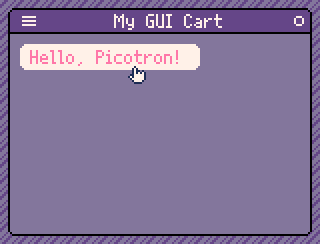
Clicking the button will trigger a "Button pressed!" notification at the bottom of the screen.
Nested Elements
We've seen that we can create and attach GUI elements by calling gui:attach_button and friends. But we can also nest elements to create more complex components. This is the key to reusability. Let's make a basic button box component that contains two buttons, "Ok" and "Cancel":
local button_box = gui:attach {
    x = 5,
    y = 74,
    width = 140,
    height = 21,
    draw = function(self, msg)
        rrectfill(0, 0, self.width, self.height, 2, 18)
    end
}

local button_ok = button_box:attach_button {
    x = 4,
    y = 4,
    width = 30,
    label = "Ok"
}

button_box:attach_button {
    x = button_ok.width + 8,
    y = 4,
    label = "Cancel"
}
The result:
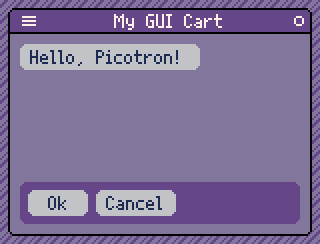
A few things are happening here. First, we are creating a "container" element for our button box and storing it in the button_box variable. This container has a draw() callback to illustrate its bounding box. Next, we use button_box:attach_button to attach the buttons to the button_box instead of gui.
You might notice that button_ok has x = 4, y = 4, yet is located further down instead of at the top of the window. This is because coordinates are local to the parent element. This means we can reposition our button_box wherever we want and the buttons will move along with it.
Keep in mind that by default, any child elements will be clipped to be within the parent's bounding box. So remember to set an appropriate width and height on the parent.
Tree Management
Previously we've been adding elements to our interface by doing this:
gui:attach {
    x = 5,
    y = 5,
    width = 20,
    height = 20
}
However, this is actually performing two operations: creating the element, and then attaching it to the tree. The tree includes everything that is currently considered "part of" the user interface. However, it is possible to hold onto an element outside the tree. Such elements do not run their update() or draw() callbacks until they are attached to the tree.
It is possible to create an unattached element using gui:new(). You can then later attach it using gui:attach(). The GUI system will recognize that it is already a GuiElement and avoid creating a new element:
local element = gui:new {
    x = 5,
    y = 50,
    width = 100,
    height = 20,
    draw = function(self, msg)
        print("I'm in the tree!", 0, 0, 1)
    end
}

gui:attach(element)
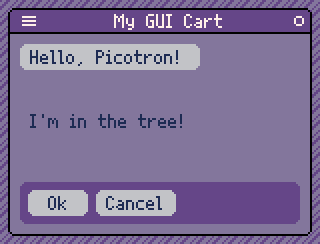
It is possible to remove an element from the tree by detaching it:
element:detach()
The element may now be garbage-collected, assuming it doesn't have any other references pointing to it. Or, you may reattach the previously detached element at a later time.
Every attached GUI element has variables that allow tree traversal: head, parent, and child.
head is simply a reference to the root element, which is created via create_gui(). In our program, this is the gui variable. This is mainly so you don't have to make gui accessible to the entire program.
parent allows accessing the element's parent. For example, we could add this callback to our "Ok" button:
tap = function(self, msg)
    notify(self.parent.width)
end
Clicking the button will now display 140, the width of our button box.
child is an array table containing every element nested under the current element. For example, you can remove the contents of element (but keep element itself) with the following:
for i = #element.child, 1, -1 do
    element.child[i]:detach()
end
Be careful when debugging GUI elements, as the parent/head references can cause nested iteration to recurse infinitely and crash Picotron.
Performance
Every frame, the GUI system will recompute the bounds of all the elements in the tree and run their update() and draw() callbacks. This means that the more elements you have in your tree, the more CPU time is needed. If your UI is split between several pages, consider attaching and detaching them as needed instead of keeping everything attached at once. If you have a large scrolling item list with hundreds of items or more, create only the items that will be in-view, and add/remove items as necessary as the list scrolls.
If you are making a desktop cart that doesn't need to animate while idle, consider only running your drawing code once every 5 frames or so, or when there is an animation update. To keep your UI responsive, you may want to mark it "dirty" when interacting with the window so that changes become visible on the same frame instead of several frames later.
Try to limit the use of update() callback processing in elements. Where possible, stick to interaction-based event callbacks like tap(). And of course, remember to cache the results of expensive calculations such as word-wrapping.